
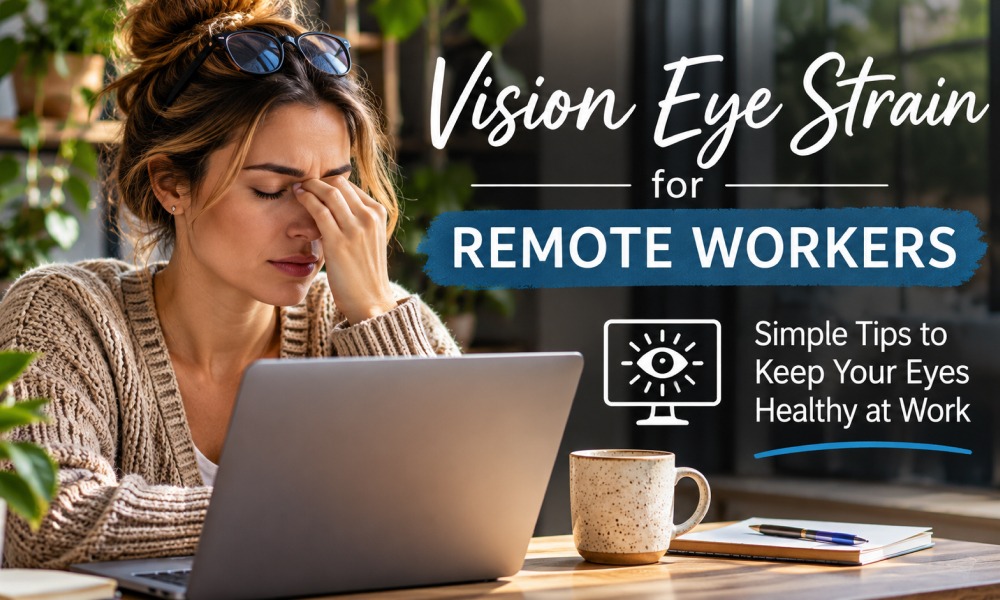
How to Relieve Digital Eye Strain: Remote Worker Guide

How Can I Relieve Digital Eye Strain From Screens?

Digital eye strain, also called computer vision syndrome, is a group of symptoms associated with prolonged screen use, including tired eyes, dryness, headaches, and blurred vision. For remote workers, practical digital eye strain relief starts with regular distance breaks, comfortable monitor placement, reduced glare, and attention to blinking—not necessarily another screen accessory. These adjustments can help reduce discomfort while keeping your home working day manageable. (aoa.org)

What helps relieve digital eye strain during remote work?

The most useful starting point is to interrupt prolonged close-up work and address the conditions making your eyes uncomfortable. Look into the distance regularly, blink deliberately, and adjust your workstation so you can read without leaning forward or squinting. If symptoms continue, an eye examination can identify dry eye or vision problems that changes to your desk alone cannot resolve. (aoa.org)
Start by noticing when discomfort appears. Does it follow a morning of spreadsheets, happen when afternoon sunlight reaches your monitor, or become noticeable during evening emails? Keep a short note of the task, lighting, and symptoms so you have something concrete to discuss if you need an appointment. Choose one immediate change rather than buying several products at once. For example, move a reflective lamp before ordering a filter, or enlarge document text before moving your face closer. This gives you a practical way to judge what feels more comfortable in your own workspace.

Build eye breaks into your remote schedule

Use the 20-20-20 rule as a reminder: every 20 minutes, look at something about 20 feet away for at least 20 seconds. It is a widely recommended habit for interrupting sustained screen viewing, not a guarantee that every symptom will disappear. The American Optometric Association also recommends a 15-minute eye rest after two hours of continuous computer use. (aoa.org)
Make the routine fit your actual work rather than relying on willpower:

During focused work: Set a quiet reminder and choose a distant viewing point before starting. In a small room, try a view through a window.

Between meetings: Leave a calendar buffer so you can stand up and look away instead of opening your inbox immediately.

During suitable calls: Suggest an audio-only conversation when nobody needs to share a screen. Walk around rather than watching a static meeting window.

At lunch: Leave your workstation and keep your phone out of the routine. Make this a genuine screen-free interval.

Treat switching from your laptop to your phone as another screen task, not your planned distance break. Keep the reminder simple: pause the close-up work, then return to it. Alternating computer tasks with other activities is also part of OSHA’s workstation guidance. (osha.gov)

Set up your home office around a relaxed posture

Arrange your chair, keyboard, and monitor together. A screen positioned correctly on its own will not help you maintain a comfortable posture if reaching the keyboard pulls you forward. OSHA recommends considering these workstation components as a system. (osha.gov)

Use this checklist before your next work block:

Chair height: Support your back and keep your feet flat on the floor or on a footrest. Keep your shoulders relaxed and elbows close to your body.

Monitor distance: Start around an arm’s length away, at least 20 inches from your eyes. Increase text size if you cannot read comfortably without leaning forward.

Monitor height: Position the top of the screen at or slightly below eye level, allowing a gentle downward gaze toward its center.

Screen alignment: Put your main display directly in front of you rather than working with your head continually turned.

Laptop arrangement: For extended work, use a separate keyboard and mouse so you can raise the laptop screen independently. (aoa.org)
Before buying a larger desk, check whether rearranging what you own creates enough viewing distance. Move unused equipment off the work surface and test the position while reading an ordinary document, not just looking at the desktop. Your setup should suit the tasks you actually do.

Control daylight and reflections throughout the day

Aim for evenly distributed room lighting rather than a bright screen surrounded by darkness or a sunlit window directly behind your display. Position your screen at right angles to windows where possible, and use blinds or curtains to soften direct sunlight. A shaded desk lamp should illuminate paperwork without reflecting into the monitor. (osha.gov) Check your lighting at more than one point in the working day. A useful morning setup may need adjustment when sunlight moves across your desk. Keep those adjustments easy: leave blind controls accessible and avoid placing your lamp where moving it requires dismantling the workspace.
To locate reflections, briefly darken the display and inspect it from your normal seated position. Reposition the light or monitor first. If reflections remain difficult to control, a matte anti-glare filter may help reduce them, but avoid one that makes the display harder to see. Clean dust and fingerprints from the screen, too. (osha.gov)

Adjust screen settings for comfortable reading

Match screen brightness to the surrounding room rather than automatically choosing the highest or lowest setting. Increase contrast if text looks indistinct, and enlarge fonts or use browser zoom instead of moving closer to small content. Brightness, contrast, and readable text size are practical adjustments recommended by eye-care and workplace guidance. (aoa.org)

Try these changes in the applications that occupy most of your working day:

There is no need to copy someone else’s brightness percentage. Test your settings in your own room and revisit them when lighting changes. Keep readability—not a particular appearance—as your goal. (osha.gov)

Does blue light protection help with screen-related discomfort?

Blue light protection is not a proven first-line solution for digital eye strain. A Cochrane review found that blue-light-filtering glasses may not reduce short-term computer-related eye strain compared with ordinary lenses. Evidence for sleep benefits was uncertain, so these glasses should not replace breaks, glare control, or appropriate vision correction. (pmc.ncbi.nlm.nih.gov)
You can try a warmer screen setting if you prefer its appearance, but treat it as an optional adjustment rather than treatment. For late remote shifts, reducing unnecessary evening screen use is another option; a filter does not make prolonged viewing consequence-free. The American Academy of Ophthalmology does not recommend special glasses simply to protect eyes from computer-screen blue light. (aoa.org)
Prescription computer glasses are different from blue-light-blocking glasses. They can be designed for your working distance, which may be useful when your current prescription does not serve your monitor tasks well. Ask an eye-care professional about your actual viewing needs rather than choosing lenses solely for a blue light claim. (aoa.org)

Support blinking and reduce dryness at your desk

People tend to blink less while concentrating on screens, which can contribute to dry, uncomfortable eyes. Use natural pauses—sending an email, finishing a paragraph, or waiting for a meeting to begin—as reminders to blink gently and fully. You do not need to squeeze your eyes tightly or follow an elaborate exercise routine. (aoa.org)
Check the air around your workspace as well. Redirect a fan or heating vent blowing toward your face, and consider a humidifier if your room is dry. Artificial tears are a common treatment for mild dry eye; ask an eye-care professional which option suits you, especially if you wear contact lenses or need drops frequently. (nei.nih.gov)
After work, choose a screen-free activity before opening another device. Try a walk, an audio program, or a conversation rather than automatically moving from work messages to scrolling. This creates a clear boundary without requiring you to eliminate screens from your leisure time.

Know when home adjustments are not enough

Arrange an eye examination if discomfort keeps returning despite changes, or if reading your monitor remains difficult. Describe when symptoms occur and bring information about your screen distance and current glasses or contacts. An eye-care professional can assess dry eye, prescription needs, and other possible causes. (aoa.org)
Do not assume sudden vision loss, severe eye pain, or sudden blurred vision with a painful red eye is ordinary screen fatigue. Seek emergency medical care for these symptoms. (pennmedicine.org)
For your next remote workday, start small: schedule distance breaks, remove one source of glare, and make text comfortably readable. Build from those changes instead of chasing a single accessory. Persistent symptoms deserve an examination, not simply a brighter monitor or another filter. (aoa.org)

Family Optical Eyecare

Proper eye care is important for preventing vision problems, diagnosing conditions early, and preserving eye health throughout life. Good eye care can help reduce the risk of eye diseases.


Contact Us

Monday-Friday 8:00 am - 5:00 pm

1420 North Ave, Suite 1, Spearfish SD 57783

EMAIL: [email protected]


BOOK AN EYE EXAM